
AI Image to Video Generator
G.K. Apps StudioArt & Design
0.00.00 Reviews
- Version
- 3
- Installs
- 10.00K
- Age Rating
- Everyone
Screenshots
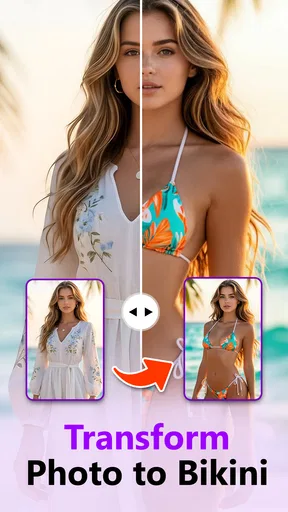
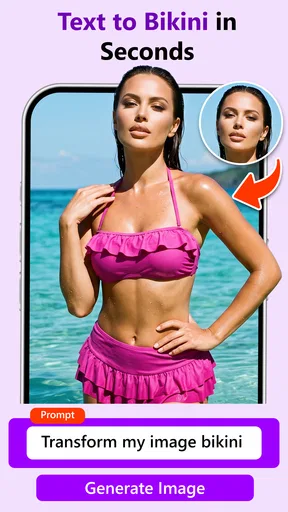

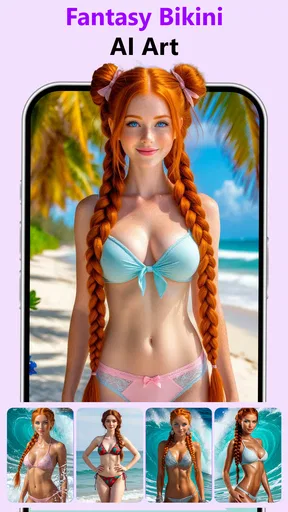
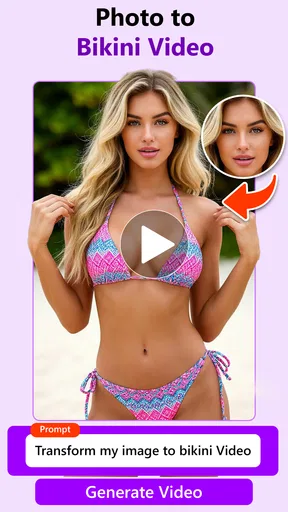
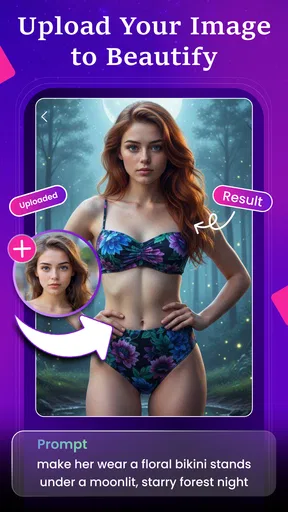
Our Review of AI Image to Video Generator
 Analysis by Appyee
I approached AI Image to Video Generator as a practical creative tool rather than a replacement for a full editing studio. Its purpose is easy to understand: start with an idea, turn it into an image or visual concept, and explore animated results, artwork, or three-dimensional-looking photos from there. In my experience, that makes it most interesting for quick experiments, social posts, mood boards, and people who want to see an idea move without learning a complicated timeline editor first.
The app comes from G.K. Apps Studio and sits in the art and design category. It is free to install, aimed at Everyone, and supports devices running Android 7.0 or later. The current version is 3, and it has passed the ten-thousand-install mark. Those details make it approachable for casual users, although the presence of optional purchases means “free” should be understood as a way to begin exploring rather than a promise that every creative path will remain cost-free.
How clearly the creative workflow communicates what to do
The strongest part of an image-to-video concept is the short distance between an idea and a visible result. I do not need to begin by arranging clips, setting keyframes, or understanding a traditional editing workspace. Instead, I can think in terms of a visual prompt or source image and then judge whether the generated movement fits the idea. That simplicity is valuable for someone opening an AI art app for the first time.
At the same time, a simple concept does not automatically make every screen easy to understand. AI creation tools often require users to interpret unfamiliar controls, wait for processing, and decide whether a result is good enough to keep. With this app, I would recommend testing one modest idea before attempting a detailed project. A small first attempt helps reveal how the app presents its creation steps and prevents a user from spending time refining a prompt before understanding the result format.
Readability matters especially when an app combines several creative directions. Here, the scope includes AI images, videos, art, and three-dimensional photos, so a new user may need to distinguish between making a still image, animating an existing visual, and creating an image with a dimensional effect. I find that the most comfortable approach is to choose one goal at a time. If I want a moving portrait, I focus on image-to-video work; if I want a poster-like visual, I avoid mixing that task with animation until the first result is complete.
The most useful habit is to treat each generation as a visual draft, not a final answer. That mindset makes the interface easier to navigate because I am evaluating direction rather than expecting perfect output immediately. It also encourages shorter descriptions and clearer subjects. For example, I would start with one person, one setting, and one movement instead of describing an entire scene with several characters and competing actions.
For users who prefer predictable navigation, the creative process may still feel less direct than a conventional drawing app. A drawing program shows a canvas and familiar tools; a video editor shows a timeline; an AI generator asks the user to describe an outcome that the app interprets. That difference is important. This app is better for idea exploration than for precise placement of every visual element.
Making prompts easier to read and manage
I found that accessibility in this kind of tool is partly about reducing mental clutter. Rather than writing a long paragraph, I would separate an idea into the subject, setting, visual style, and movement. A description such as “a paper boat on a quiet puddle, soft evening light, gentle drifting motion” is easier to review and adjust than a dense block of instructions. This also helps users who find long text difficult to scan.
A useful workflow is to keep a short note outside the app containing prompt variations. I can then change one element at a time: the subject stays the same while the setting changes, or the setting stays fixed while the movement becomes slower or more dramatic. This is more manageable than trying to remember which wording produced a particular result. It also gives users with limited attention or working-memory capacity a clearer way to compare attempts.
There is a trade-off here. The less technical the workflow feels, the less control I have over exact output. Someone who wants a repeatable visual identity for a large project may prefer a conventional design application with layers, templates, and manual adjustments. Someone who wants to turn a thought into a quick visual may appreciate not having to learn those systems.
Using the app with different motor and sensory needs
AI creation can remove some physical demands associated with drawing or video editing. I do not need to manually trace an object, animate every frame, or manipulate a complex timeline to explore a moving image. That can make the app appealing to users who have difficulty with precise touch gestures, prolonged tapping, or detailed hand control. A prompt-led workflow shifts much of the work from fine motor action to text entry and visual decision-making.
That advantage has limits. Typing a useful description still requires a comfortable way to enter text, and reviewing generated visuals depends on being able to see enough detail. Users with limited dexterity may find repeated editing, scrolling, or selecting small controls tiring. I would approach the app in short sessions and prepare the core description before opening the creation screen. This reduces the number of interactions needed on the phone.
For users with visual sensitivities, animated results deserve particular care. Movement, contrast, rapid changes, or busy scenes can be uncomfortable even when the original image looked calm. I would begin with still artwork or gentle motion and avoid visually crowded prompts until I understand how the app interprets movement. The ability to choose a quieter subject and simpler composition is a practical way to make the experience less overwhelming, although it is not the same as having dedicated motion-reduction controls.
People who are sensitive to sound should also think about the complete viewing context. The central appeal is visual generation, so I can evaluate a result without needing to make audio the focus. That makes the app more suitable for silent environments or users who prefer visual communication. However, anyone expecting a full audiovisual production workflow should compare it with a dedicated video editor, where sound and timing are usually more central to the process.
For users with hearing-related access needs, a visual-first creation process can be less dependent on spoken instructions. I can work from written ideas and inspect the result visually. Still, the overall experience depends on how clearly the app labels actions and presents progress, so I would not assume that visual generation alone guarantees an equally clear experience for everyone.
Practical ways to reduce physical and sensory friction
I would use a phone stand or a larger-screen device when possible, not because the app requires specialized equipment, but because keeping the device steady makes repeated review more comfortable. A larger display can also help when judging whether a generated subject remains recognizable during motion. This is particularly useful for faces, hands, text inside an image, and objects with thin outlines.
Another useful technique is to create a “safe test” prompt before working on something important. I might use a simple landscape or single object first, then move to a portrait or a scene with several elements. This reveals whether the visual changes are easy for me to follow without forcing me to assess a complicated result. It is a small step, but it makes the app more approachable for users who become fatigued by visually dense output.
Users who rely on device-level text scaling, contrast settings, screen readers, voice input, or alternative input methods should evaluate how the app behaves alongside those tools on their own device. I would not treat compatibility as guaranteed simply because the operating system supports an assistance feature. The app’s own controls and generated content still determine whether the experience feels comfortable in practice.
When the app fits real-life situations
A realistic use case is a small business owner preparing a quick announcement for a social channel. They may already have a product photo but no time to learn animation software. With this app, they can experiment with turning the image into a short visual concept, perhaps using movement to make the post feel more noticeable. The important limitation is that the generated result should be reviewed carefully before publishing, especially if the product shape, lettering, or brand details must remain exact.
I can also see it helping a student build a visual starting point for a presentation. Instead of searching for a perfect stock image, the student can explore an original scene that communicates an idea. The app is most useful at the brainstorming stage, where several rough directions are more valuable than one polished but generic picture. A conventional presentation tool would still be better for arranging the final slides and ensuring that text remains precise and readable.
For a family member who enjoys creative experimentation but finds professional design software intimidating, the app offers a gentler entry point. They can begin with a familiar subject, such as a garden, pet, room, or travel memory, and see how different descriptions change the visual result. This kind of low-pressure exploration is where I think the app feels most inviting.
It may also be useful for writers and illustrators who need atmosphere before committing to a project. I would use it to explore lighting, setting, or emotional tone rather than to establish final character continuity. AI-generated scenes can suggest a direction quickly, but repeating the same person or object consistently across multiple outputs is a different challenge from producing one attractive image.
Situational access is another strength. Because the app is designed for mobile use, it suits short creative sessions while commuting, waiting, or taking a break, provided the user has a suitable connection and enough battery for the task. I would not choose it for a situation where every result must be produced immediately or where the phone’s screen is too small to inspect details comfortably. A quick generation is only useful if I can actually judge the output.
Where usual alternatives are still better
Compared with a standard drawing app, this tool reduces the need for manual illustration but gives me less direct control over lines, layers, and exact placement. Compared with a timeline-based video editor, it makes animated experimentation easier but is not the obvious choice for carefully timed cuts, captions, transitions, or audio mixing. Compared with a stock-image library, it can help create a more personal concept, but a stock library may be faster when I need a reliable, immediately usable photograph.
That comparison clarifies the app’s role. I see it as an idea generator and visual shortcut, not an all-purpose replacement for design software. If a client requires exact typography, consistent branding, or frame-by-frame control, I would create or refine the material elsewhere. If the goal is to discover a visual direction without heavy technical setup, this app is more compelling.
The free entry point is helpful for trying the workflow, but optional purchases ranging from thirty-nine cents to seventeen dollars and ninety-nine cents per item can affect how freely someone experiments. I would decide in advance how many attempts are genuinely useful and avoid treating every generated variation as necessary. This matters for younger users and anyone sharing a device, because the Everyone age rating describes the intended content audience, not a guarantee that in-app spending will never require attention.
Remaining barriers before choosing it
The largest barrier is the gap between a simple request and a dependable result. A user may describe exactly what they want and still receive an image or animation that changes important details. That uncertainty is normal for generative tools, but it can be frustrating for people who need consistency or who find repeated trial and error difficult. I would skip this app for essential work where an incorrect face, object, pose, or piece of text would create a serious problem.
Another barrier is evaluation. A generated visual can look impressive at first glance while containing awkward anatomy, strange object movement, or details that do not make sense when viewed longer. I recommend checking the result at a slower pace and looking specifically at the subject’s edges, hands, facial features, and any written elements. This is one of the most important practical checks because visual novelty can hide small errors.
There is also a learning curve in discovering how to phrase requests. The app may feel accessible at the beginning, but better results usually come from comparing wording and narrowing the subject. Users who expect a single command to produce a finished professional asset may be disappointed. The app rewards curiosity and iteration more than certainty.
People who need strong control over privacy, file handling, or account behavior should read the app’s current permissions and policies before using personal images. I would be especially careful with family photographs, identification documents, private artwork, or client material. The fact that an app is easy to use does not remove the need to think about what is being uploaded or transformed.
Accessibility can also vary by device. A newer phone with a larger screen may make visual inspection easier than an older, smaller handset. Users who depend on voice control or screen-reading support should test the main creation path rather than assuming every control will be equally accessible. If navigation becomes tiring or important actions are hard to identify, a more established editor with a clearer manual interface may be the better choice.
Who should try it, and who should pass
I would recommend trying it if you want quick AI-assisted visual ideas, enjoy experimenting with prompts, or need a starting point for an image-to-video concept. It is particularly suitable for casual creators, students, social-media users, and people who would rather describe a scene than draw or animate it manually.
I would be more cautious if you need exact brand assets, dependable character continuity, advanced editing controls, or a predictable production pipeline. In those cases, a drawing application, professional image editor, or conventional video tool will probably serve you better. The same applies if repeated visual changes are tiring or if you need a workflow that does not depend on interpreting generated results.
My advice is to begin with a non-sensitive image or a simple original idea, keep the first prompt short, and compare only one change at a time. Before considering a result finished, inspect it at a comfortable size and decide whether it communicates the intended message without explanation. That process gives the app a fair test while keeping expectations realistic.
As a free art and design app from G.K. Apps Studio, AI Image to Video Generator has a clear appeal: it lowers the barrier between imagination and a moving visual. Its current version 3 supports an accessible starting point for Android users on version 7.0 or later, and its Everyone rating makes it broadly approachable in terms of intended audience. The optional purchases mean I would still monitor spending, especially when experimenting frequently.
My inclusive verdict is positive but specific. I think the app works best when accessibility means avoiding complex manual animation and giving users a visual way to explore ideas through text and images. It can reduce fine-detail drawing demands and fit short creative sessions, but it does not remove the need to read controls, type descriptions, inspect results, and tolerate some unpredictability. Choose it for fast visual exploration, not for guaranteed precision. If that trade-off matches your needs, it is worth trying; if control, consistency, or fully structured editing matters more, a traditional creative app will be the more comfortable recommendation.
Verdict
Strengths of AI Image to Video Generator
- Turns still images into engaging videos with minimal effort.
- AI effects and motion presets help create polished social content.
- Useful for creators without advanced video-editing experience.
- Supports quick experimentation with different visual styles.
- Can make ordinary photos more dynamic and shareable.
Limitations of AI Image to Video Generator
- Results may look unnatural when faces or fine details are animated.
- Some features or exports may require a paid subscription.
- Processing times can vary with image complexity and server demand.
- Limited control may frustrate users seeking precise animations.
- Generated videos may include quality loss or unwanted visual artifacts.
Other Releases by G.K. Apps Studio
View All
Chat Cloner Secretly View Chat
Communication4.1
Similar Picks in This Category
View All
Canva: AI Photo & Video Editor
Canva4.8

PENUP – Drawing-sharing SNS
Samsung Electronics Co., Ltd.4.5

Crafto
Kutumb App4.6

Sketchbook
Sketchbook4.1

ibis Paint X
ibis inc.4.5

Adobe Express: AI Photo, Video
Adobe4.6
Frequently Asked Questions
What is AI Image to Video Generator and how does it work?
AI Image to Video Generator is a creative tool that turns still images into short animated videos. After uploading a photo, users can usually describe the desired motion or choose a preset effect, such as zooming, camera movement, facial animation, or cinematic transitions. The app then processes the image on its servers or device and produces a downloadable video. Results can vary depending on image quality, prompts, and the selected generation settings.
Can I use AI Image to Video Generator with any photo?
The application generally works with portraits, landscapes, illustrations, product images, and other clear visual content, but not every photo produces equally convincing results. High-resolution images with visible subjects and good lighting usually perform best. Blurry pictures, crowded scenes, extreme angles, or images containing small details may create distorted motion. Before uploading, users should also confirm that they own the image or have permission to process and publish it.
Is AI Image to Video Generator free to download and use?
The app may be free to install, but advanced video generation commonly depends on credits, subscriptions, or optional in-app purchases. Free users might receive a limited number of generations, shorter clips, lower resolution, or videos with a watermark. Pricing, available credits, export quality, and trial conditions can change, so it is important to review the current subscription details in the Google Play Store or App Store before starting a paid plan.
Can the generated videos be saved and shared on social media?
After processing is complete, users can typically save the generated clip to their device and share it through platforms such as Instagram, TikTok, YouTube Shorts, Facebook, or messaging applications. Export options may differ depending on the app version and account type. Some plans may restrict resolution, duration, or watermark removal. It is also worth checking the platform’s terms if the video includes recognizable people, copyrighted artwork, or commercially used material.
Is my uploaded image and generated video kept private?
Privacy depends on how AI Image to Video Generator handles uploaded files, prompts, and generated content. Some versions process media in the cloud, which means images may be temporarily stored to complete generation or improve the service. Before using personal, confidential, or client-owned photos, users should read the privacy policy, retention rules, and deletion options. Avoid uploading sensitive identity documents or private images unless the service clearly explains how they are protected.
